Meta Description: Learn how to increase website speed in 2026 with seven proven tips for images, caching, hosting, CDN, plugins, lazy loading, and SEO.
“1 second delay = 7% less sales. Is your website slow?”
Your website may have a great design, excellent products, and useful content.
But if it loads slowly, visitors may never see any of it.
People are impatient online. They want websites to load quickly, especially on mobile devices. A slow website can increase bounce rates, reduce conversions, hurt user experience, and make your business look less professional.
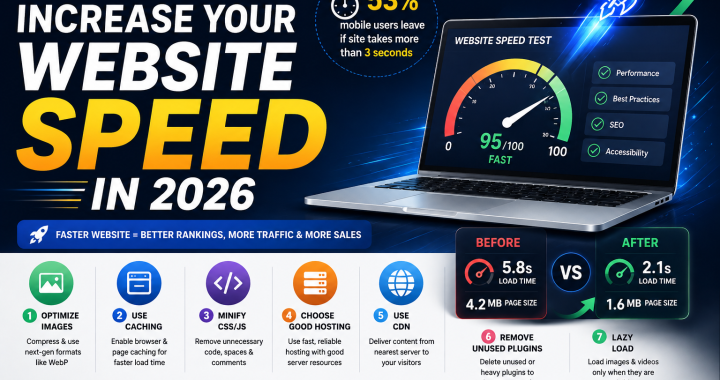
One widely cited statistic says 53% mobile users leave if a site takes more than 3 seconds.
For website owners, bloggers, and e-commerce businesses, improving performance isn’t just a technical task. It can directly affect business results.
Let’s explore seven practical ways to increase website speed in 2026.
Why Website Speed Matters in 2026 – Google + User Data
Website speed matters for two major reasons: users and search engines.
Google has long emphasized page experience and performance as important parts of creating a good website experience. Core Web Vitals—including LCP, INP, and CLS—help measure important aspects of how users experience a page.
A slow website can create problems such as:
- Higher bounce rates
- Lower engagement
- Poor mobile experience
- Fewer conversions
- Frustrated customers
- Reduced search visibility in some situations
For an e-commerce store, even a small performance problem can mean fewer people reach the checkout page.
For a blogger, slow pages can mean readers leave before consuming the content.
That’s why website speed optimization should be part of your regular website maintenance.
Tip 1: Optimize Images
Large images are one of the most common reasons websites become slow.
Imagine uploading a 5 MB image when your page only needs a compressed 150 KB version.
The visitor has to download unnecessary data.
What Should You Do?
Before uploading images:
- Resize them to the required dimensions
- Compress them
- Use modern formats such as WebP or AVIF where appropriate
- Avoid uploading unnecessarily huge images
- Use responsive image sizes
For example, if your blog displays an image at 800 pixels wide, you probably don’t need to upload a 5000-pixel-wide image.
Smaller image = less data = faster loading.
Tip 2: Use Caching
Caching stores certain website resources so they don’t have to be generated or downloaded from scratch every time.
Think of it like keeping frequently used items within easy reach.
Browser Caching
A visitor’s browser can store certain files locally.
When they return, some resources don’t need to be downloaded again.
Page Caching
For many WordPress websites, caching plugins can create stored versions of pages that can be served more quickly.
Caching configuration depends on your website setup, so avoid enabling random performance settings without checking whether they work correctly.
Tip 3: Minify CSS and JavaScript
Your website uses CSS for styling and JavaScript for functionality.
These files can contain unnecessary spaces, comments, line breaks, or code that increases their size.
What Does Minification Do?
Minification removes unnecessary characters while keeping the code functional.
For example:
Before:
Large, formatted code with spaces and comments.
After:
Smaller, optimized code that browsers can process more efficiently.
Minification can reduce file sizes and improve loading performance.
However, test your website after minifying files. Incorrect optimization settings can sometimes break menus, forms, sliders, or other functionality.
Tip 4: Choose Good Hosting
You can optimize every image and script on your website, but poor hosting can still hold your site back.
Your hosting provider affects:
- Server response time
- Reliability
- Resource availability
- Scalability
- Server location
- Performance under traffic
Cheap Hosting Isn’t Always Cheap
Saving ₹500 today isn’t useful if slow hosting causes you to lose customers tomorrow.
For a small blog, basic hosting may be enough.
For an e-commerce store receiving significant traffic, you may need stronger hosting resources.
Choose hosting according to your actual traffic and technical requirements.
Tip 5: Use a CDN
CDN stands for Content Delivery Network.
A CDN stores or delivers website resources through a distributed network of servers.
Instead of every visitor receiving files from one distant server, content can often be delivered from a location closer to the user.
This can be especially useful if your audience is spread across different cities or countries.
CDN Benefits
A CDN can help with:
- Faster content delivery
- Reduced server load
- Better global performance
- Improved reliability
- Faster delivery of static files
CDNs are particularly useful for websites with lots of images, videos, CSS, JavaScript, and international traffic.
Tip 6: Remove Unused Plugins
This is especially important for WordPress websites.
Installing plugins is easy.
Removing them isn’t always something website owners remember to do.
Over time, you may end up with plugins that are:
- Unused
- Duplicating another plugin’s function
- Poorly maintained
- No longer necessary
- Adding unnecessary scripts
Do a Plugin Audit
Go through your plugins regularly.
Ask:
“Do I really need this?”
If the answer is no, remove it after ensuring it isn’t required by your theme or another feature.
Don’t just deactivate unnecessary plugins indefinitely—remove plugins you genuinely don’t need, while keeping backups before making significant changes.
Tip 7: Use Lazy Loading
Imagine an e-commerce page containing 30 product images.
Does the visitor need all 30 images to load immediately?
Probably not.
Lazy loading allows certain resources, particularly images, to load closer to when they are needed.
For example, images lower down the page can wait until the user scrolls toward them.
This can reduce the amount of content that needs to load initially.
Where Can You Use Lazy Loading?
It can be useful for:
- Blog images
- Product images
- Gallery images
- Embedded videos
- Content below the initial screen
Be careful with important above-the-fold content. Delaying critical content can hurt performance instead of improving it.
Before vs After: Speed Example
Let’s imagine an online clothing store.
Before Optimization
Page Load: 5.8 seconds
Page Size: 4.2 MB
Images: Uncompressed
Caching: Not configured
Plugins: 28 active
CDN: No
The owner notices visitors are leaving quickly.
After Optimization
The owner:
- Compresses images
- Converts suitable images to WebP
- Enables caching
- Removes unnecessary plugins
- Minifies CSS and JavaScript
- Adds a CDN
- Uses lazy loading
After Optimization
Page Load: 2.1 seconds
Page Size: 1.6 MB
Images: Optimized
Caching: Enabled
Plugins: 17 active
CDN: Yes
These numbers are an illustrative example, not a guaranteed result.
The key lesson is simple:
Performance optimization is a process of removing unnecessary work.
How to Test Speed: GTmetrix and PageSpeed Insights
Don’t guess whether your website is fast.
Test it.
Google PageSpeed Insights
Google’s PageSpeed Insights provides performance information for mobile and desktop experiences and reports on Core Web Vitals.
It can help you identify issues related to:
- Images
- JavaScript
- CSS
- Server response
- Render-blocking resources
- Core Web Vitals
GTmetrix
GTmetrix provides performance reports and recommendations that can help you understand how your pages load.
Run tests before making changes.
Then test again afterward.
This gives you evidence about whether your optimization actually helped.
Website Speed Optimization Tools List
Here are some useful tools for website speed optimization:
- Google PageSpeed Insights – Performance and Core Web Vitals
- GTmetrix – Detailed performance testing
- Google Search Console – Search performance and Core Web Vitals reporting
- WebPageTest – Advanced page performance testing
- Chrome DevTools – Developer-focused performance analysis
- TinyPNG – Image compression
- Cloudflare – CDN and performance/security services
Use tools to identify problems, but don’t optimize based on scores alone.
Your real goal is a fast, stable, usable website.
Site Speed Tips 2026: Quick Checklist
Before you finish your optimization, check these basics:
- Compress large images
- Use WebP or AVIF where appropriate
- Enable effective caching
- Minify CSS and JavaScript
- Use reliable hosting
- Consider a CDN
- Remove unnecessary plugins
- Enable appropriate lazy loading
- Test mobile performance
- Monitor Core Web Vitals
These site speed tips 2026 can help you create a faster experience without making performance unnecessarily complicated.
Conclusion
A fast website isn’t just technically impressive.
It creates a better experience for your customers.
Whether you’re running a blog, local business website, SaaS platform, or e-commerce store, speed can influence how people interact with your website.
Start with the biggest problems first.
Optimize your images.
Improve caching.
Clean up unnecessary plugins.
Choose better hosting.
Use a CDN when appropriate.
Test everything.
The goal of website speed optimization isn’t to chase a perfect score.
It’s to make your website fast, stable, accessible, and easy to use.
If you’re serious about improving your online presence in 2026, don’t let a slow website send customers to your competitors.
Start using these site speed tips 2026 today.
Comment ‘SPEED’ and I’ll send you free website speed audit checklist.